Valheim 1.0.15
Valheim save file location for worlds and characters on Windows, macOS and Linux
Valheim keeps each world and each character in one of two places. With Steam
Cloud on, which is Steam's default, a new world goes into Steam's own folder,
under userdata, then your account number, then 892970\. A
save kept on this computer sits in worlds_local inside Valheim's own folder.
Characters sit beside the worlds, in characters and characters_local.
Where are Valheim worlds saved?
| System | Steam Cloud | This computer |
|---|---|---|
| Windows | C:\ | C:\ |
| macOS | ~/ | ~/ |
| Linux | ~/ | ~/ |
~ is your home folder, / on a Mac and /
on Linux. A Steam Deck keeps its Steam Cloud saves in the Linux folder.
Steam makes one numbered folder for every account that has signed in on the
computer. Open the one that holds a 892970 folder, which is Valheim's number
on Steam. If Steam is installed somewhere other than
C:\, start from that folder instead.
Characters are in the same places: characters instead of worlds, and
characters_local instead of worlds_local. Each character is one .fch
file with the character's name.
Windows hides AppData, macOS hides Library, and Linux hides folders whose
name starts with a dot. Pasting the path opens them anyway. On Windows, paste
%USERPROFILE%\ into the
address bar of File Explorer. On a Mac, press ⇧⌘G in Finder and paste the path.
On Linux, press Ctrl+L in the file manager and paste it.
Is my world in Steam Cloud or on this computer?
Press Start Game. The character screen and the world list mark every save: a cloud for Steam Cloud, a floppy disk for this computer. A Steam Cloud save follows your Steam account to every computer you play on; a local save stays on the computer that made it.
A new world goes to Steam Cloud whenever Steam Cloud is on for your account and for Valheim. With it off, or when your cloud storage is full and you accept the game's offer to save locally, the world is saved on this computer. In the world list, Manage saves moves a world with Move to cloud and Move to local.
What is in a world folder?
Each world is a folder with the world's name:
_main.<n>.fwl2holds the world's name, its seed and its ID. This is the world file. The number goes up as the game saves._main.<n>.db2,_main.<n>.chunksand the.chunkfiles hold everything the world has saved, from your buildings to the places your visits fixed._main.<n>.okmarks a finished save.- Folders named
<world>_backup_auto-<date>are the game's automatic backups, restored from Manage saves.
A world saved in the older form is a pair of files directly in the worlds
folder, <world>.fwl and <world>.db. A character is <name>.fch, with its
backups beside it as <name>_backup_auto-<date>.fch and the previous save as
<name>.fch.old.
How do I open my world on the seed map?
The seed map draws a world from its seed, and the world list shows the seed beside each world's name, so typing it is enough. The world file does the typing for you and also tells the seed map which world it is, which your character's map needs in the next step.
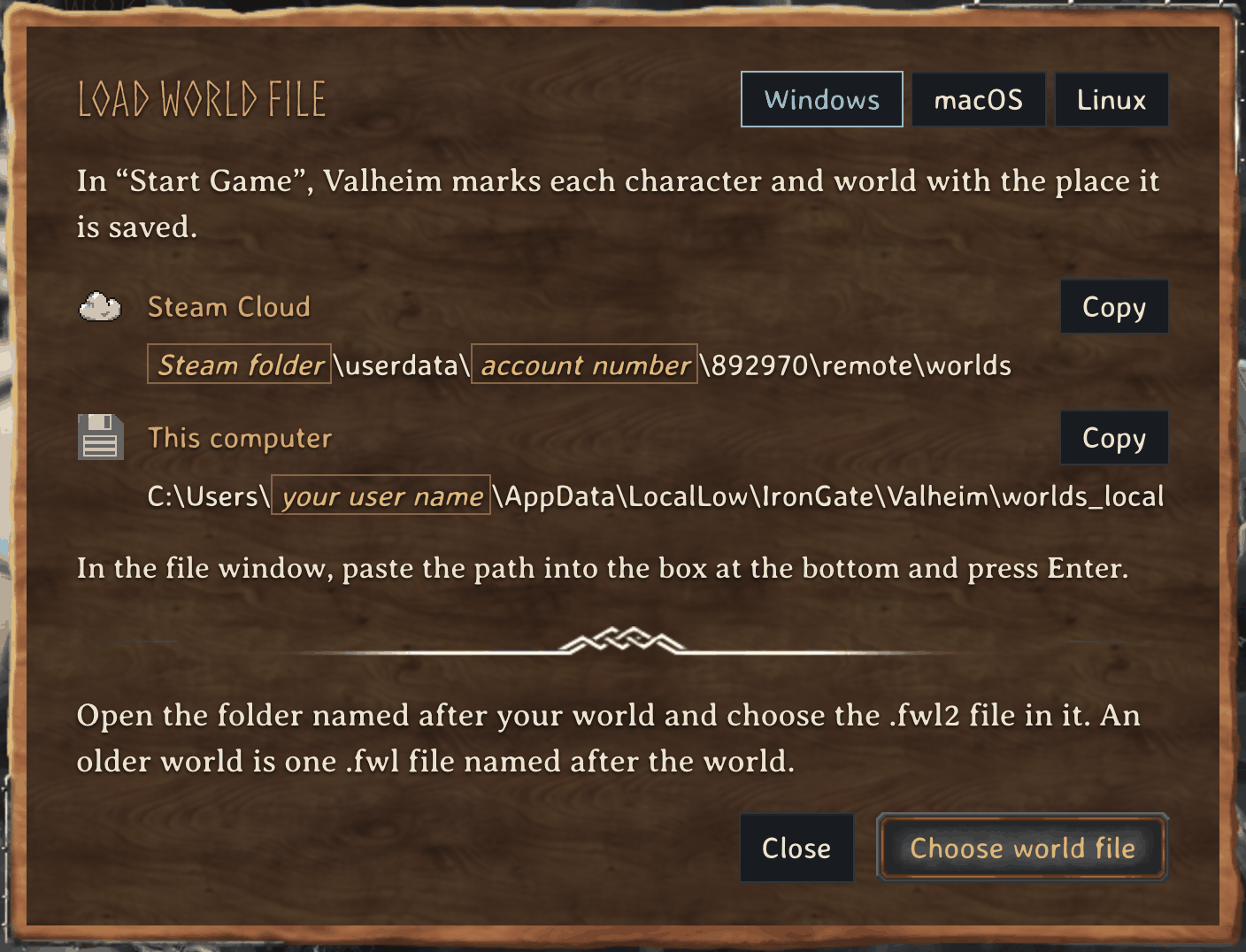
- On the home page, press Load world file.
- The window shows both folders for your system. Press Copy beside the one whose mark your world shows in the game.
- Press Choose world file. On Windows, paste the path into the box at the bottom of the file window and press Enter. On a Mac, press ⇧⌘G first; on Linux, press Ctrl+L first.
- Open the folder with your world's name and choose the file ending in
.fwl2.
The seed map opens that world. Your browser reads the file on the page; it is not sent anywhere. From here the seed map guide covers the boss altars, trader camps and dungeons your seed placed.
On a friend's world or a dedicated server, the world file lives on the host's
computer or on the server. Ask the host for the seed, or for the .fwl2 file.
How do I see my explored map and pins on the seed map?
A character file carries the character's map of every world it has played. That
map holds your pins, your bed and the ground you explored. Press Load
character on the seed map and choose <name>.fch from the characters folder.
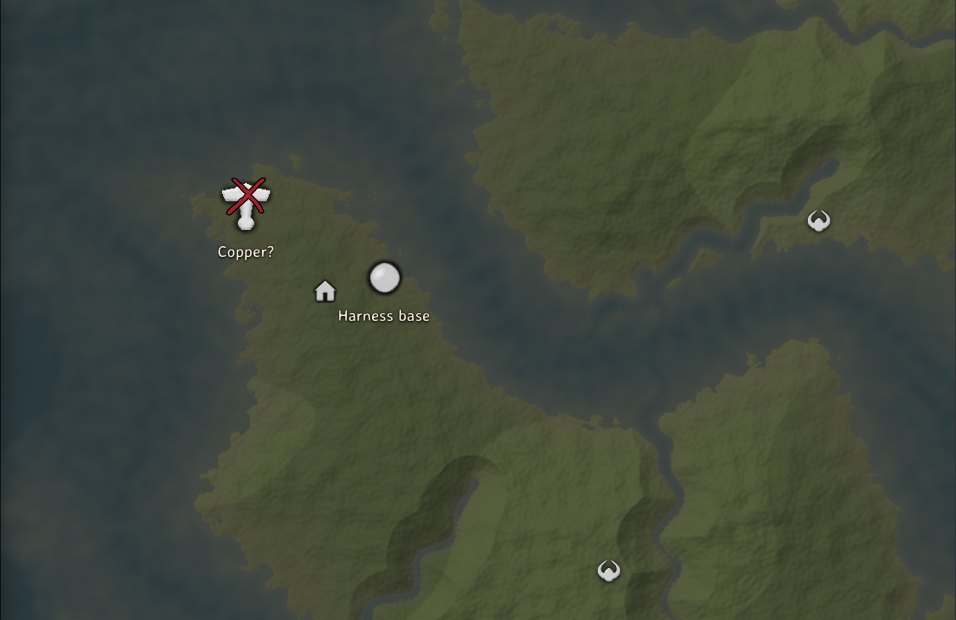
The seed map draws your pins with the game's own icons and names, the red cross on pins you checked off, and your bed. Ground you have not explored is dimmed, and ground that only a shared map from a cartography table showed you is dimmed less. The first two rows of Layers turn pins and explored ground on and off. The map stays in this browser for that seed, so it is there the next time you open the world.
A character's map of a world is stored under the world's ID, and only the world file carries that ID. If this browser has not read the world file yet, the same window asks for it. Choose the world file and your map appears.
Search Bonemass with your map loaded. Every one of his altars is listed, and the ones in dimmed Swamp are the ones you have not been near yet. When you need Scrap Iron, search Sunken Crypts and take the nearest one outside your explored ground. Press Choose on map and click your base pin to measure every result from home instead of the starting stones.
How do I load the whole saved world?
Load world on the seed map reads the world's whole folder instead of one file. Choose the folder with your world's name. Chrome and Edge then ask whether to upload the folder; allow it. The files are read on the page and never leave your computer, and nothing is written back to them.
The map then shows the locations as your save holds them. Search also reaches what the world saved, at the positions it saved them. Ore deposits and trees, creatures and portals come up by name or tag, and chests come up by what they hold. Search Scrap Iron and the chests you left it in are among the results.
Why does the seed map refuse my file?
- This is not a Valheim world file: the chosen file is not the world file.
Choose
_main.<n>.fwl2, or<world>.fwlfor an older world, not the.db2or a.chunkfile. - The seed map cannot draw this world: the world was created by an earlier version of Valheim's world generator. A world keeps the generator it was created with, and the seed map draws the one the game uses for new worlds.
- This is not a Valheim character file: choose the
.fchfile. - This character has no map of this world: the character has not played the world that is open. Open the world it played, then load it again.
Tools & mods
- Valheim seed map guide: where your world's bosses and traders are
- Valheim food and gear planner: check armour and health before a boss
- Valheim build cost calculator: total materials for a whole build
- Valheim fishing: the bait for each fish, where it spawns and how to land it
- Live Seed Map mod for Valheim: install it, connect it and track places in your game
- How to install Valheim mods on a Mac, natively on Apple Silicon without Rosetta
- Valheim live map: your running game on your seed map